Loading...
Showing posts with label json. Show all posts

Tuesday, April 22, 2014

Python: Converting CSV to XML and JSON


Hello Readers,


Today we will convert the common CSV (comma separated values) format into XML (extensible markup lanuage) and JSON (javascript object notation) formats in Python. The CSV file we will use was obtained from data scraping the weather underground website.
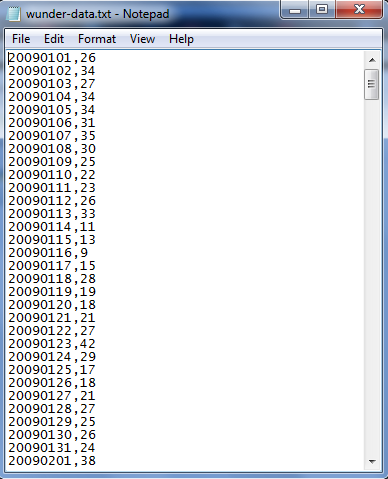

CSV Data

The CSV data has two elements in each row separated by a comma:

1. The date as 8 characters- 4 year, 2 month, 2 day
2. Temperature in Fahrenheit


CSV To XML


The XML format exists as self-defined tags, beginning with a XML declaration, specifying the XML version "1.0". There is a root element of <weather_data>, and a child element of <observation>, which also has a child element (sub-element) of <date> and <max_temperature>. The root and child elements make up the tree structure, and note that tags need to be closed as well.


XML Tree

To read the CSV file, we use the
csv.reader() method, and set the delimiter to a comma. Then we create the XML file to which we will write the output, and write the XML heading and the root element.
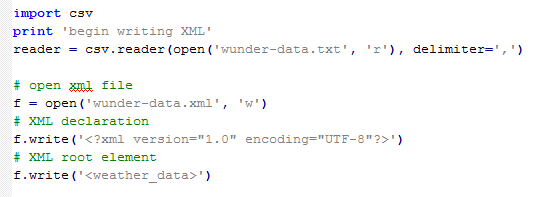

Reading CSV and Writing XML

Now we iterate through the child elements of observations consisting of the date and maximum temperature. Recall that the date is in the first index and the temperature is in the second, with python index starting at 0. Remember to close the open tags afterwards, and close the XML document.


Observation Element and Closing Tags

We can see the results by opening the XML file, and opening it in a web browser, such as Google Chrome:


XML Output

Note how the root and child elements have arrows which we can minimize, and each observation is separate. Our XML formatting looks correct through Chrome. Although the output takes up more room than a CSV file, it is much more readable.


CSV To JSON


Javascript Object Notation is another format widely used to store and transfer data. 
It is quite different from XML, because it uses curly braces "{ }" for objects and brackets "[ ]" for arrays, instead of <tags> separating elements. The basic JSON format applied to our weather data is shown below. 
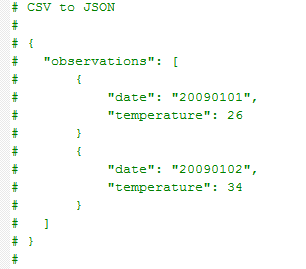

JSON Format

Even though we will not use the
json module, I show it so you know it is there. Import the csv module to read our "wunder-data.txt" CSV file again, and write the "observation" object and begin an array with an open bracket. We start a rows_num variable at 0, and count to the max number of iterations (rows in the CSV file).
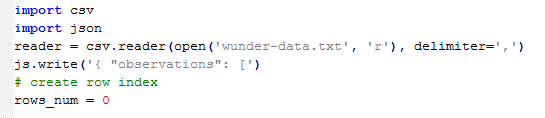

Import, Read and Write Data

Inside this array, we iterate our observation objects with name/value pairs with date and temperature. Incrementing the rows_num by 1 with each observation, if it reaches 354, we still want to include a comma after the closing curly bracket. But if it reaches 365, then we finish the observations and close the array and observations object.


Iterating Objects

Opening the JSON output in Google Chrome, we see a mess of name/value pairs. Clearly Chrome does not read plain JSON, but there are Chrome Apps available, such as JSONView.


JSON Output

Okay readers, we have covered much ground today with data formats. Both XML and JSON are widely used, knowing both will definitely allow you to utilize varied data sets. Stay tuned for more posts!


Thanks for reading,

Wayne
@beyondvalence

Monday, January 27, 2014

Querying Twitter API using Python: Part 2, Tweets


Hello Readers,


Here we will continue where we left off from querying US and World Twitter trends in Python. After we obtained the trends what else can we do? Using current international and US trends, we can create sets and perform intersections of the two trending sources to see which are in common. Then we will search for tweets based on a common popular trend!

Just a quick note, remember to recheck your Twitter OAuth tokens to ensure that they still are the same. Update them if they have changed, or else your previous script will not work presently. Also, I am running the python code as script from the command prompt, which is why the results have a black background.


Let us get started.


Twitter Trends as Sets


From the last post I demonstrated how to obtain the OAuth keys from Twitter by creating an app. Using the keys, we were able to access Twitter API using the twitter module. Afterwards we queried world and US trending topics and for this post, I queried the topics again to obtain recent trends. Here are some recent (as of the writing of this post) US trends shown in json format:


US Trends- json format

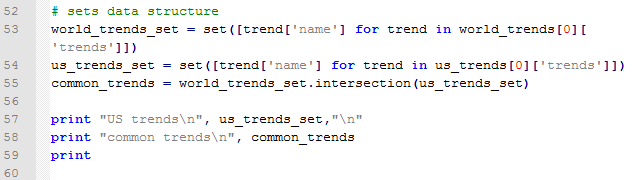
Yes, the '#Grammys' were on, and 'Smokey the Bear' was a trending item too, apparently. Next we will use the world and US trends and determine if there are any similar items by using the intersection of sets.


Finding Similar Trends

Below we have the results for the US trends as well as the intersection of the US and world trends. Note that the similar trending topics were: '#BeyonceAtGrammys', '#TheBachelorWedding', and 'Bey and Jay'.


US Trends and Popular Trends


Searching Tweets


Now that we have trending topics, we can search for tweets with a specific trending topic, say '#TheBachelorWedding'. We use the twitter_api.search.tweets() to query for tweets. However, we will take this one step further and query for more results with a for loop. Inside the search_results metadata there is a heading for 'next_results', which we will keep querying 5 times and add them to the statuses (tweets). Additionally, we will using '+= ' to modify statuses in place with new search_results.


One notion we must be aware is cursoring, as Twitter does not use pagination in the search results. Instead, we are given an integer signifying our location among the search results broken into pages. There is both a next and previous cursor given as we move along in the search results. The default cursor value is -1, and when we hit 0, there are no more results pages left.

Here are the results for the first status-tweet. It is quite extensive for a 140 character tweet,  with 5kb of metadata. The tweet was: 


"Catherine and Sean are perf. Bye.  \square \square#TheBachelorWedding"


Tweet Data!

It is so lengthy that I had to truncate the results to capture it! I circled the tweeter's handle: @ImSouthernClass.


More Tweet Data!


Fantastic, we were ab
le to query tweets based on the popular trends we obtained from Twitter. Next we will analyze the metadata behind multiple tweets and trends! So stay tuned!


Thanks for reading,


Wayne
@beyondvalence